-
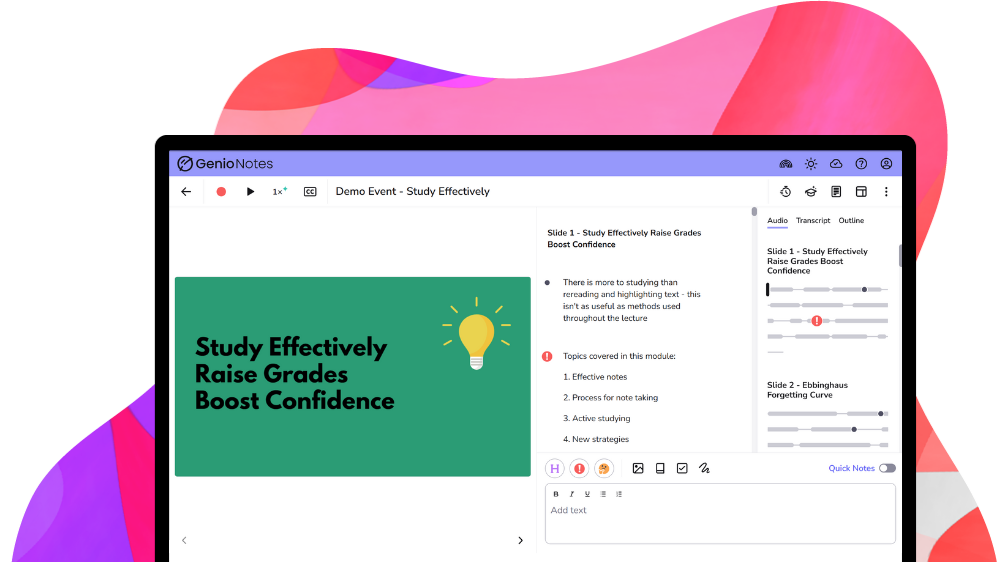
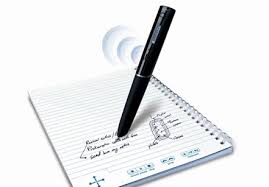
Organize notes, record lectures, type or write notes, to improve note
 taking skills, retention, and comprehension by allowing students to focus more on the course lecture content and less time taking notes.
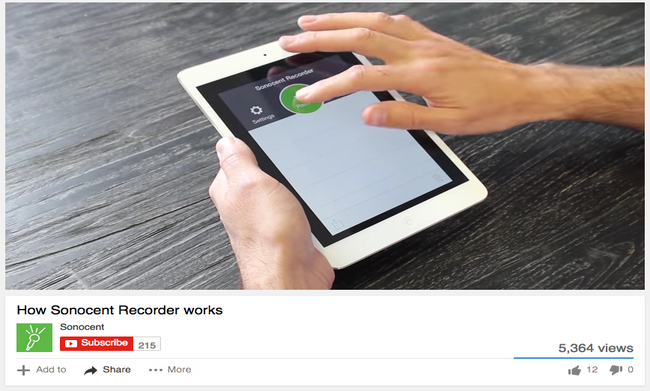
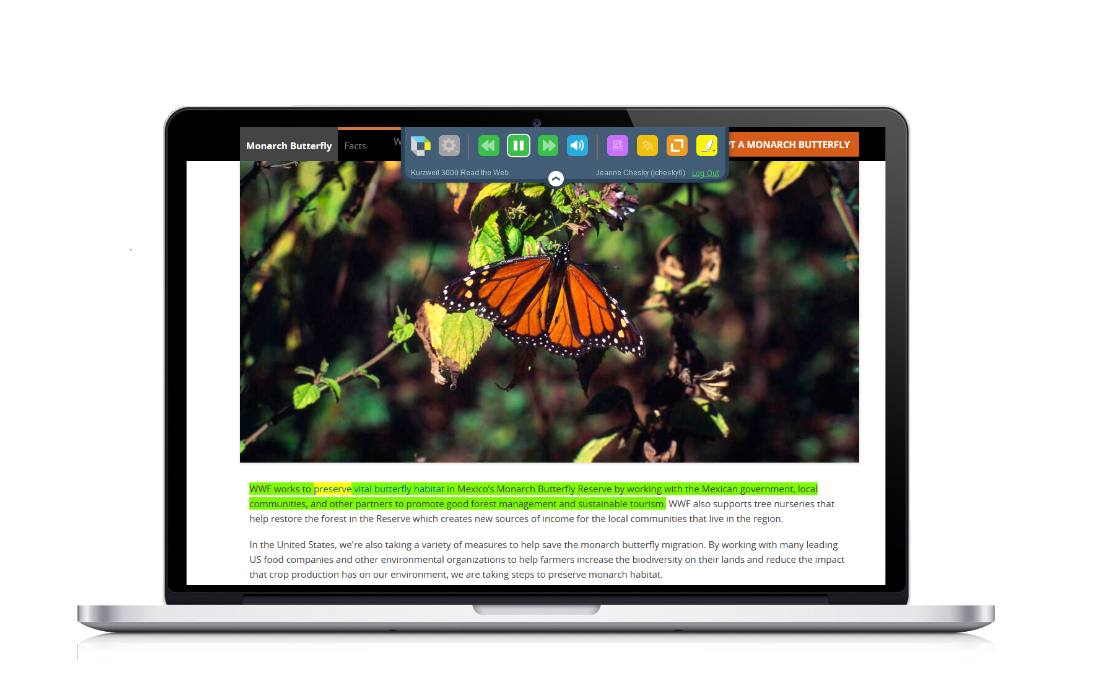
The ATI offers a number of options to support students with notetaking. The most commonly used solutions are as follows:
Notetaking & Organizational Resources
-

What is Assistive Technology?

AT Assessments & Referrals
Library AT Labs
Options for Typing with your Voice

Tools for Reading
Tools for Notetaking

Tools for Writing

Tools for Individuals with Visual Impairments
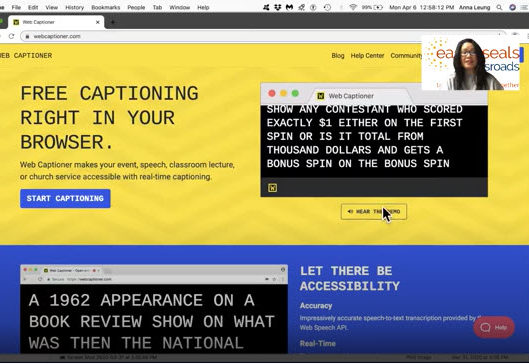
Tools for Deaf or Hard of Hearing Individuals

Accessibility Tools for Mac & iOS

Accessibility Tools for Windows
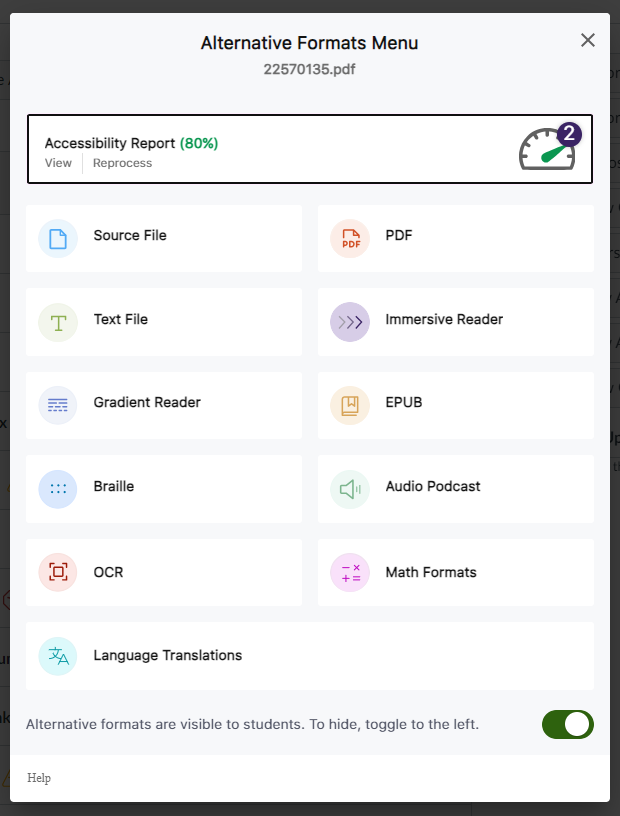
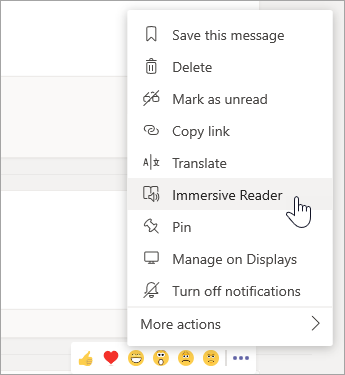
Alternative Format Options in Canvas (Students)








If a PDF is a scanned image rather than a digitally created document, assistive technologies cannot properly read its content. Signs that OCR may be needed:
-
- You cannot highlight or search for text within the PDF
- Panorama identifies image-based PDFs as Scanned or Untagged.
- Alternative formats generated from the PDF appear incomplete or garbled
Start by running OCR on Untagged or Scanned PDFs.
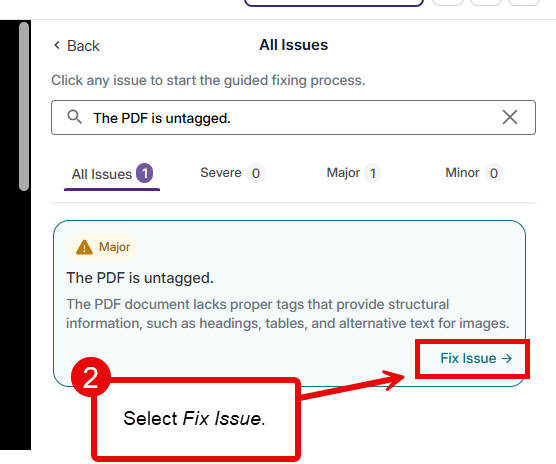


 After OCR completes, note the change in the document’s accessibility score. Remediate the remaining issues one by one, or select the Fix This Document button. This will provide access to the Structural Remediation Advanced Editor tool, where you can verify the accuracy of the OCR tagging process, add alt text for images in bulk, and/or retag the document, if necessary.
PLEASE NOTE: If your document is incorrectly tagged during the OCR process, restart the process by clicking the vertical ellipsis (3 vertical dots) button on the top right of the document preview window and restoring the original version. Once restored, restart the tagging process by selecting the other OCR option (i.e., OCR Overlaid vs OCR Reconstructed). This addresses most issues. If this does not solve your problem, proceed to Step 7.
-
Meet your 2025-2026 Trusted Testers!
-
Meet your 2026-2027 Document Accessibility Pros!
-
Meet your 2025-2026 Document Accessibility Pros!